How long does it take to set up a store on oBizee?
You can create your account and add your first product in under 5 minutes. The entire setup — from download to sharing your first order form — takes about 10 minutes.
Step-by-Step Guide
Follow this visual guide to set up your store, add products, take orders, and ship with Delhivery, DTDC & Blue Dart — no coding needed.
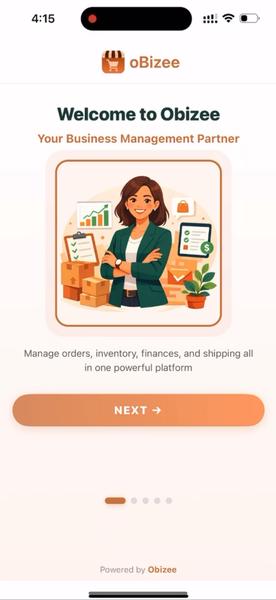
Download oBizee from the App Store or Google Play. Open the app and you'll see the welcome screen with an overview of what oBizee offers.
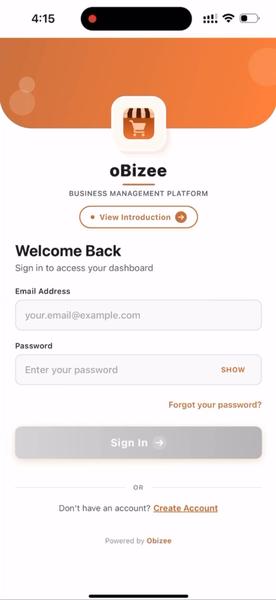
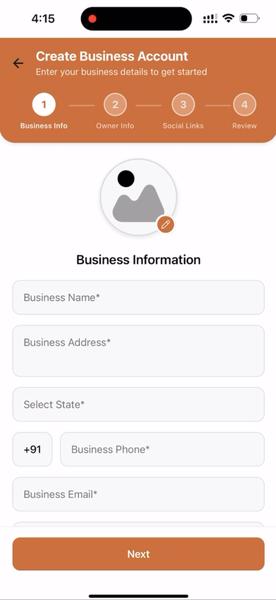
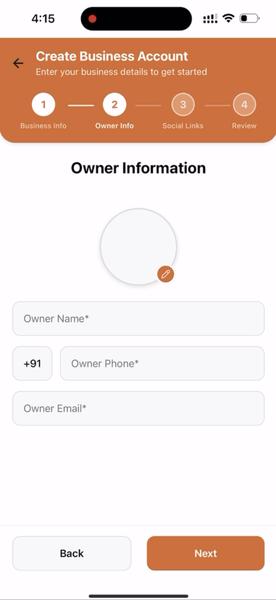
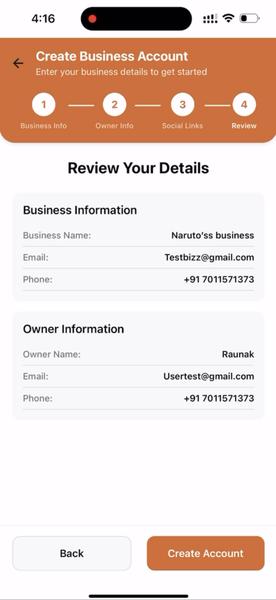
Tap 'Create Account' on the login screen. You'll go through a simple 4-step process: enter your business information (name, address, state, phone), add owner details, link your social media profiles, and review everything before submitting.
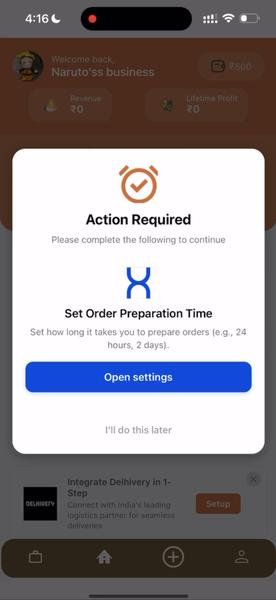
After logging in, you'll see your merchant dashboard with order statistics, revenue tracking, and a guided setup banner. The app also prompts you to set your order preparation time and shows a Delhivery integration option.
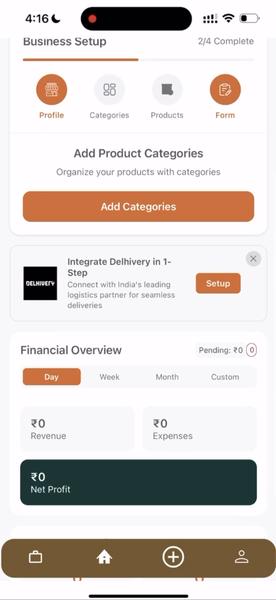
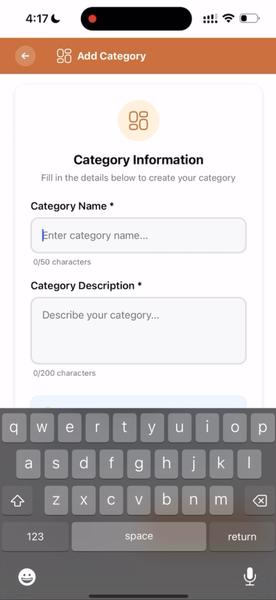
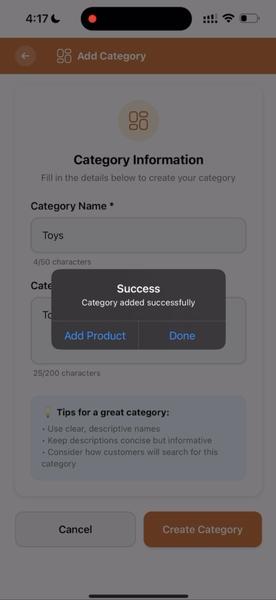
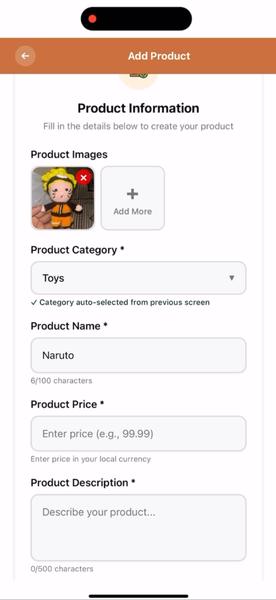
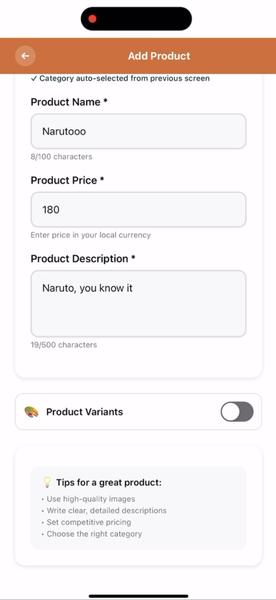
Tap 'Add Categories' to organize your products. Give each category a name and description. Once saved, you'll be prompted to add products. For each product, upload images, enter the name, price, and description.
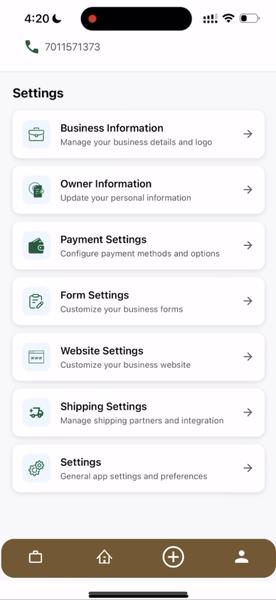
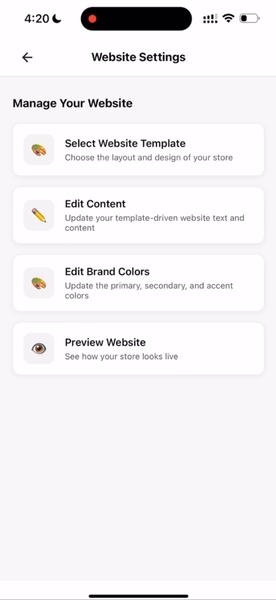
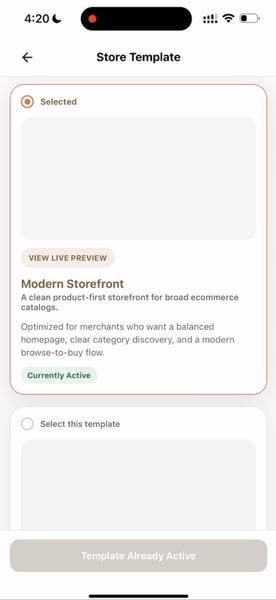
Go to Settings → Website Settings to customize your auto-generated store. Choose a template, edit your content, and set your brand colors. Your store is live at yourname.obizee.com.
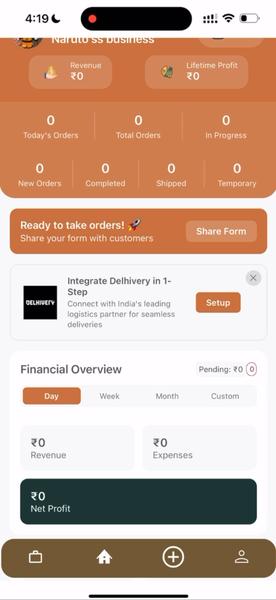
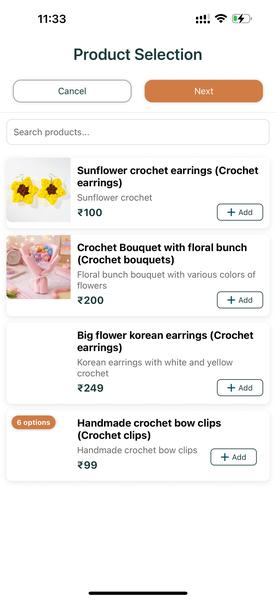
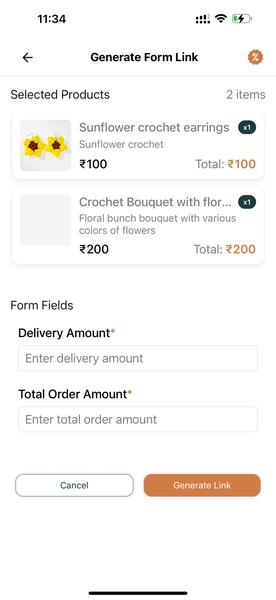
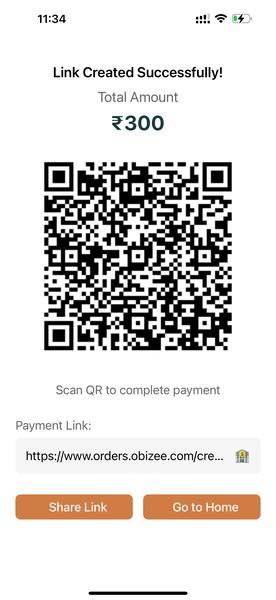
Tap 'Share Form' on your dashboard. Select the products for the order, set the delivery amount and total order amount, then tap 'Generate Link'. You'll get a shareable link and QR code that you can send to customers via WhatsApp, Instagram, or any channel.
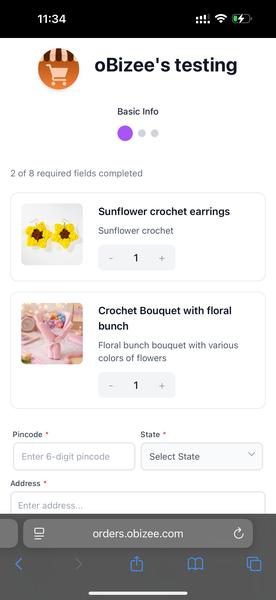
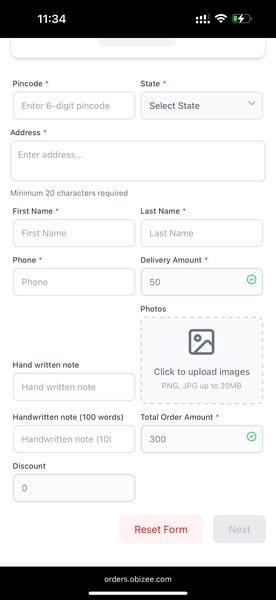
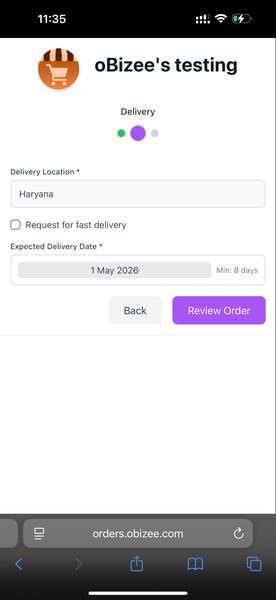
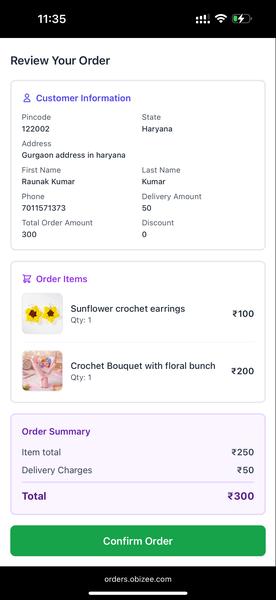
When a customer opens your order link, they see your store branding and the selected products. They fill in their delivery details (pincode, address, phone), choose a delivery date, and review the full order summary before confirming.
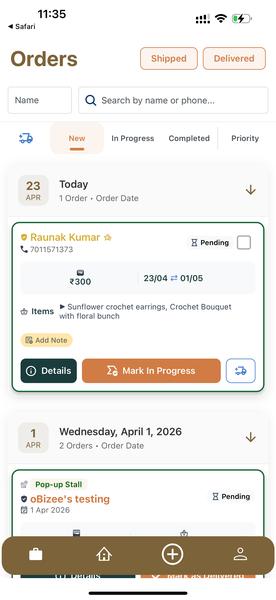
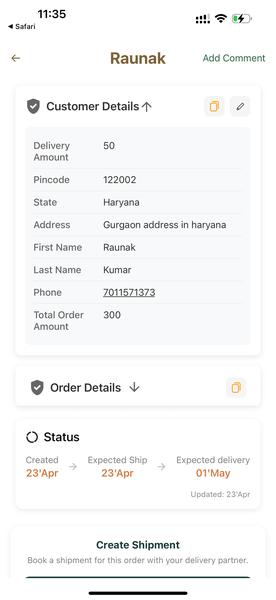
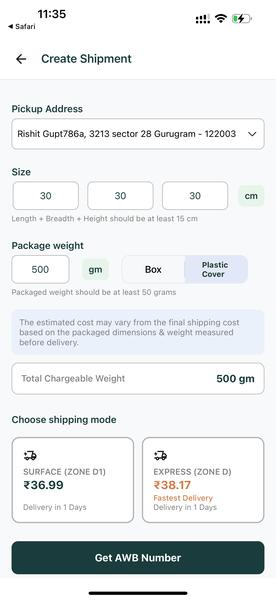
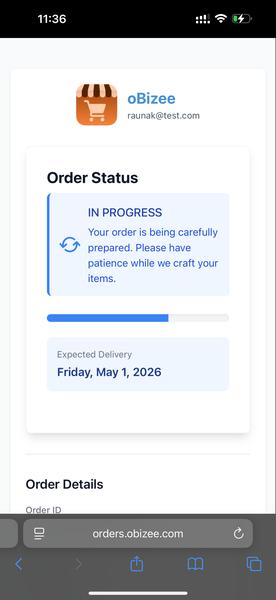
New orders appear on your Orders dashboard. Tap any order to see full customer and order details, including a status timeline. If you've integrated Delhivery or DTDC, tap 'Create Shipment' to enter package dimensions, choose a shipping mode, and generate an AWB number. Your customer gets live tracking automatically.
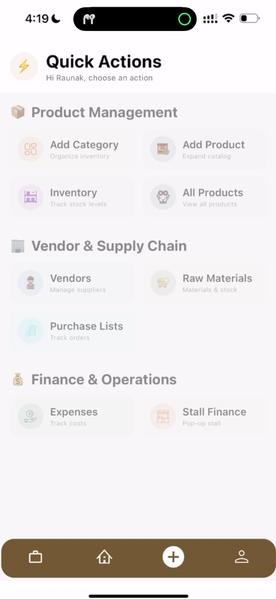
Beyond orders, oBizee gives you quick access to manage your entire business — product management, vendor & supply chain, and finance & operations — all from one screen.
You can create your account and add your first product in under 5 minutes. The entire setup — from download to sharing your first order form — takes about 10 minutes.
No. oBizee is designed for non-technical merchants. Everything works through a simple mobile app — no coding, no hosting, no WordPress knowledge required.
Setting up your store is completely free. There are no setup fees and no monthly subscription. Once your store has taken ₹50,000 in orders, you pay 1% per order, capped at ₹10 maximum.
You share an order form link with customers via WhatsApp, Instagram, or any channel. Customers open the link, select products, fill in delivery details, choose a delivery date, and confirm the order.
Yes. oBizee has built-in integration with Delhivery, DTDC and Blue Dart. You can create shipments, generate AWB numbers, choose shipping modes, and your customers get live order tracking — all from the app.